# The Layer List
**URL:** https://www.sketch.com/docs/interface-and-settings/the-mac-app-interface/the-layer-list/ | **Last updated:** 2026-05-19
---
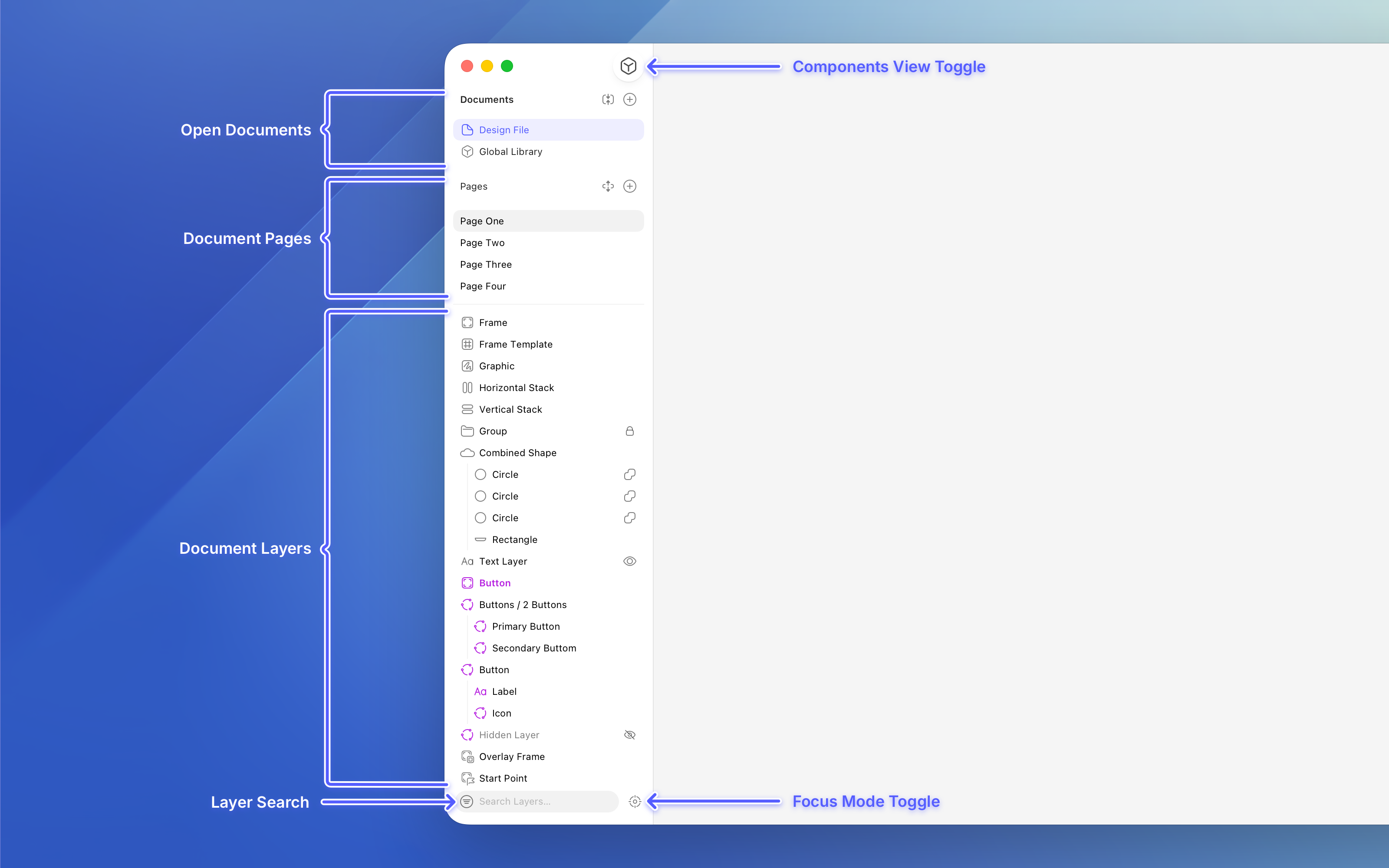
In the layer list, you’ll find your open documents, pages, frames, and layers. You can reorder and rename them directly from here.
## Useful shortcuts
| Action | Shortcut |
|--------|----------|
| Expand a frame, group or Symbol | ⏎ |
| Exit a frame, group, or Symbol | Esc |
| Open Symbol Source | ⌘⏎ |
| Select the next layer or group | ⇥ |
| Select the previous layer or group | ⇧⇥ |
> **Note:** Navigating within a frame or group using ⇥ or ⇧⇥, will only cycle through layers inside that frame or group.
## Documents
At the top of the layer list, you’ll find all currently open documents. This makes it easy to switch between them or create new ones. You can collapse this section into a dropdown menu for a more compact view. You can create a new document by clicking the + button at the top of the Documents section in the layer list, or by pressing ⌘N.
Hover over a document’s name to see a tooltip showing which folder it’s in.
## Pages
Below the document list, you’ll see the Pages section. Here you can view, rename, or create pages for the active document. You can also collapse this section into a dropdown.
You can use as many Pages as you like in your document. They’re handy for organizing your work, for example to create a new page for each iteration, or to split complex designs into multiple pages by dedicating a page to each area. Using multiple pages also improves the Mac app’s performance with complex documents.
To create a new Page, click the + button at the top of the Pages section in the layer list. Click on the Page you want in the layer list to navigate to it, or press Fn↑ or Fn↓ to jump between them.
You can drag Pages to change their order. Once you’ve created pages, you can drag frames or layers within the layer list from one Page to another in the Pages section.
## Layers
The layer list helps you quickly locate and organize content on your canvas — especially in complex documents with multiple [frames](/docs/interface-and-settings/the-mac-app-interface/the-canvas/#using-frames), [groups](/docs/designing/layer-basics/grouping-layers/), and [Symbols](/docs/symbols-and-styles/symbols/).
The list is fully [searchable](#searching), and giving layers meaningful names makes it much easier to find what you need.
> **Note:** The canvas won’t move to show your layer when you select it in the layer list. To bring it into view, press ⌘2 to focus right on that layer.
### Renaming layers
To rename a frame or layer:
- Double-click its name and rename it
- Select it and press ⌘R
- Or use the Command Bar and search for _rename_.
### Navigating layers
You can select layers directly from the list, which also highlights them on the canvas. To expand nested content — such as groups, Symbols , or combined shapes — click the icon next to a layer’s name. Hold ⌥ while clicking to expand all nested layers at once.
You can also right-click a layer in the list to open a context menu with common layer actions like group, transform, align, etc.
To jump to a layer on the canvas, hold ⌥ and hover over its name in the layer list, then click the arrow that appears.
> **Note:** Symbols appear with a purple icon in the layer list.
If you’ve used boolean operations to create [combined shapes](/docs/designing/shapes/boolean-operations/#combining-shapes), they’ll appear grouped in the layer list. Hover over a boolean operation icon to see a tooltip showing its type (Union, Subtract, Intersect, or Difference).
## Selection
Layers on the Canvas display a distinct selection box based on their properties and hierarchy. Top-level frames or layers show a solid outline when selected, while nested frames or layers display a dotted outline around their parent.
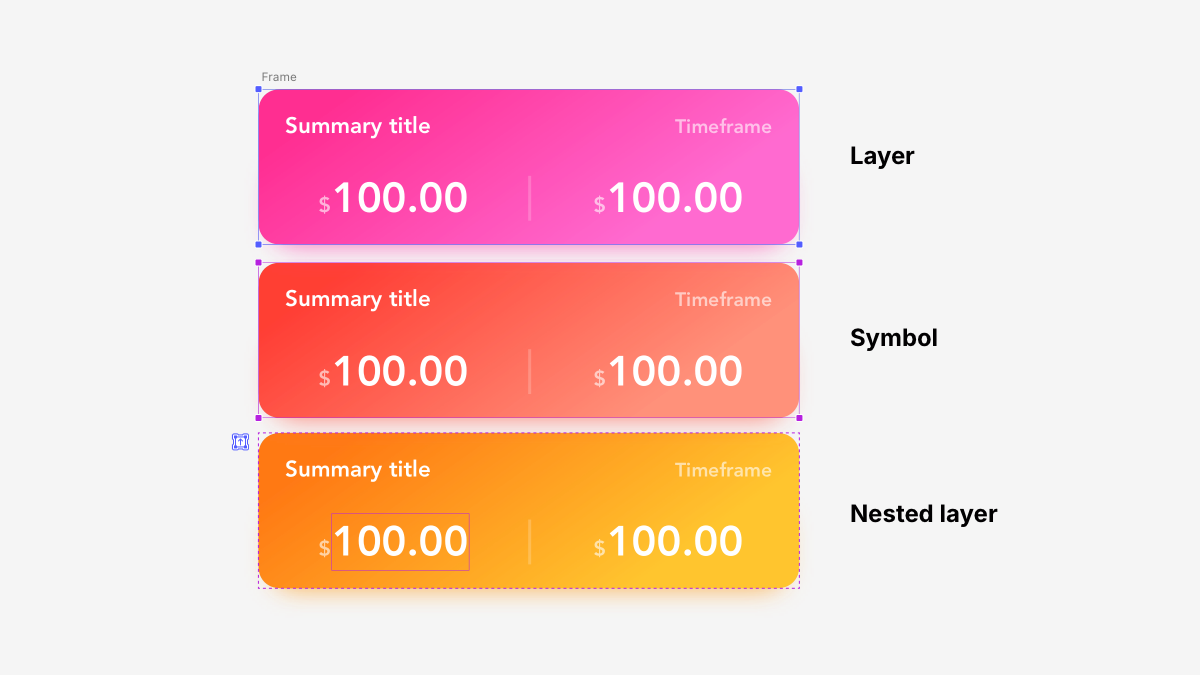
*The types of selection boxes that appear in the Mac app*
The corner handles look different here — to resize a layer inside a Symbol instance, you need to edit the Symbol Source.
## Layer list icons
The layer list displays icons that correspond to the type and form of the layer on the Canvas — for example, a rectangle shape will appear as a small preview next to the layer name.
> **Note:** To quickly focus on a layer, double-click its icon in the layer list. Sketch will pan and zoom to that layer on the Canvas.
**Layer types**
- Frame
- Frame Template
- Graphic
- Horizontal Stack
- Vertical Stack
- Group
- Combined shape
- Union
- Subtract
- Intersect
- Difference
- Text layer
- Symbol (source and instance share the same icon)
- Overlay Frame
- Start Point
**Layer controls**
- Locked layer
- Layer visible
- Layer hidden
Symbols appear in purple. Hidden layers appear in light grey. When layers, groups or combined shapes have a [Text Style](/docs/symbols-and-styles/text-and-layer-styles/text-styles/) or [Layer Style](/docs/symbols-and-styles/text-and-layer-styles/layer-styles/) applied to them they will also appear in the Symbol highlight color.
## Hiding and locking layers
To hide a layer, hover over its name in the layer list and click the eye icon that appears. If the eye icon next to a layer has a line through it before you hover it, the layer is already hidden. You can also use ⇧⌘H to toggle hiding and showing layers.
To lock a layer, hold ⌥, hover over it in the layer list and click the padlock icon . Click the padlock icon to unlock it. Alternatively, you can also press ⇧⌘L to toggle the lock on and off for one or more selected layers.
To prevent unwanted edits, you can’t select a locked layer directly on the canvas. Select it in the layer list first to move or edit it.
## Searching the layer list
If you have a document with lots of layers, you can use the search bar at the bottom of the layer list to find layers by name or type. You can quickly focus the layer list search bar by pressing ⌥⌘F.
> **Note:** The layer list will truncate long layer names. Hover over them to see a tooltip with the full name.
## Focus mode
Focus mode filters the layer list to show only the layers related to what you’re working on. When it’s enabled, the layer list displays only the layers within the top-level frame of your current selection. If there isn’t a top-level frame, we’ll show all layers on the page. You can toggle focus mode using the icon at the bottom of the layer list or via **View** > **Sidebar** > **Focus Layer List** in the menu.