# MCP Server
> Learn how to connect your AI tools with Sketch’s MCP Server.
**URL:** https://www.sketch.com/docs/mcp-server/ | **Last updated:** 2026-11-02
---
Sketch includes a built-in MCP Server, a lightweight local-only web server that lets AI clients like ChatGPT or Claude interact directly with Sketch. Through the MCP Server, these clients can access or modify data in your Sketch documents using a set of defined MCP commands (also called _tools_).
> **Note:** The MCP Server requires Sketch 2025.2.4 or later and is not available in the Mac App Store version. [Download the Mac app from sketch.com](/releases/mac/).
When an AI client connects to the Sketch MCP Server, it automatically learns which tools are available and how to use them. These details are supplied by the server and injected into the model’s context, allowing it to reason about Sketch-specific actions.
Once you connect it, your AI agent can issue requests such as “_export all icons for developer handoff_” or “_find inconsistencies in the design system_”. The AI then selects the most suitable MCP command and calls it.
Typical use cases include:
- Exporting assets for developer handoff
- Reviewing or auditing design systems for inconsistencies
- Generating new screens from templates using existing components
> **Note:** **Looking for more ways to use our MCP server?** Check out our [agents repo](https://github.com/sketch-hq/agents) and a recent [blog post](/blog/mcp-server-use-cases/) with some MCP server use cases.
## How to start Sketch’s MCP Server
1. In Sketch, press ⌘K to open the Command Bar and type “MCP”.
1. Choose **Start MCP Server**.
1. macOS may ask you to allow Sketch to access your Local Network. Choose **Allow**, because the MCP server needs it to work.
1. At the bottom of your Sketch document, you’ll see a message confirming the MCP server’s address and port.
Alternatively, you can start and stop the MCP Server in **Settings > General > MCP Server**.
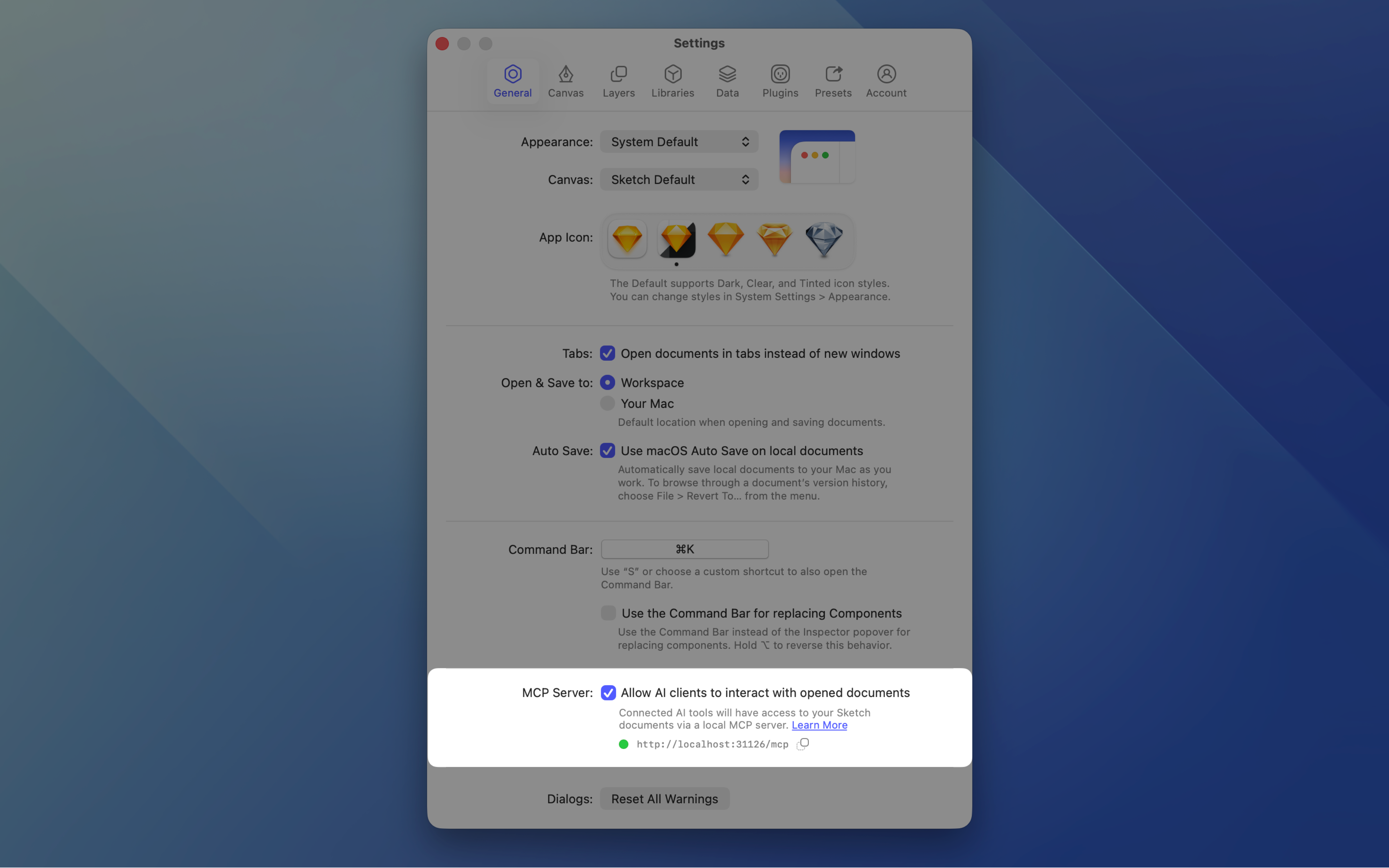
*The General settings panel with the MCP Server toggle highlighted*
> **Note:** If you see an error message when you attempt to start the MCP server, [please let us know](/support/contact/).
## How to connect your AI client
Before you connect your AI client, make sure you’ve [started the MCP server](#how-to-start-sketchs-mcp-server) in Sketch.
### Claude Code
> **Note:** You’ll need Claude Code installed and running in your terminal to use the Sketch MCP server. If you haven’t set it up yet, [get Claude Code](https://code.claude.com/docs/en/quickstart) before continuing.
1. Run the following command to connect Claude Code to the Sketch MCP server:
~~~bash
claude mcp add --transport http sketch http://localhost:31126/mcp
~~~
1. Check that Claude Code is connected to the MCP server:
~~~bash
claude mcp get sketch
~~~
### Claude Desktop
1. In the Claude desktop app, go to **Claude > Settings > Extensions** and click **Browse Extensions**.
1. Search for “Sketch”.
1. Click the Sketch connector, then click **Install**.
1. Sketch will appear on the Extensions page under **Installed on your computer**.
To manage tool permissions, click **Configure**. You can choose whether Claude always asks before using the MCP server’s tools, or is always allowed to use them.
### Codex
1. Add the following lines to your `~/.codex/config.toml` file:
~~~toml
[mcp_servers.sketch]
url = "http://localhost:31126/mcp"
~~~
2. Run `codex`, type `/mcp` and verify that the Sketch MCP server is active:
~~~
/mcp
🔌 MCP Tools
• Server: sketch
• URL: http://localhost:31126/mcp
• Tools: get_design_assets, get_document_info, get_guide,
get_layer_tree_summary, get_libraries,
get_screenshot, get_symbol_overrides, run_code
~~~
### VS Code
1. Press ⇧⌘P to open the Command Palette and choose **MCP: Add Server**.
1. Select **HTTP (HTTP or Server-Sent Events)** as the server type.
1. Paste this URL when prompted:
~~~
http://localhost:31126/mcp
~~~
1. Enter `sketch` as the server ID.
1. Choose **Global**, then **Copilot Global**, to make the server available in all your projects.
1. Open the Chat view and start a new chat. Copilot can now use Sketch’s MCP tools.
### Cursor
1. Open `~/.cursor/mcp.json` in Cursor, or create it if it doesn’t exist yet. To use it in one project only, use `.cursor/mcp.json` in your project folder instead.
1. Add the following to the file:
~~~json
{
"mcpServers": {
"sketch": {
"url": "http://localhost:31126/mcp"
}
}
}
~~~
1. Save the file, open **Customize** from the sidebar, and make sure the Sketch MCP server is turned on.
### Pi
> **Note:** You’ll need Pi 1.0 or later installed to use the Sketch MCP server. If you haven’t set it up yet, [get Pi](https://pi.dev) before continuing.
1. Run the following command to connect Pi to the Sketch MCP server:
~~~bash
pi mcp add sketch --url http://localhost:31126/mcp
~~~
Pi adds the server to `~/.pi/agent/mcp.json`. To use it in the current project only, add `-l` to the command. Pi then saves the server to `.pi/mcp.json` and loads it once you trust the project.
1. Check that Pi is connected to the MCP server:
~~~bash
pi mcp list
~~~
In a running Pi session, type `/mcp` to check the server’s status. If you added the server while Pi was running, type `/reload` first.
### Antigravity
1. Open an Agent session in Antigravity.
1. Click the **…** menu at the top of the side panel and select **MCP Servers**.
1. At the top of the MCP Store, click **Manage MCP Servers**, then **View raw config**.
1. Add the following to your config:
~~~json
{
"mcpServers": {
"sketch": {
"serverUrl": "http://localhost:31126/mcp"
}
}
}
~~~
1. Save the file and restart Antigravity to load the MCP server.
## Sketch’s MCP tools
Sketch’s MCP Server exposes a set of tools that AI agents can call to read from and write to your documents. You generally don’t need to specify which MCP tool to call — an AI agent will decide that on its own. That said, you can still mention a tool explicitly if you want to guide its approach.
### `run_code`
The **`run_code`** tool gives AI agents access to the entire [SketchAPI](https://developer.sketch.com/reference/api/), just like a Sketch plugin. Since AI models are good at writing code, agents can automate and control Sketch through scripts with multiple steps, branching, and even error handling.
If an AI agent encounters code errors, it can review them, adjust the script, and try again — iterating automatically until the code achieves the intended result. You can watch this process unfold or step in at any point, but an agent can often complete the loop entirely on its own.
### `get_document_info`
Returns a structured overview of the open document: its ID, file name, and a page-by-page breakdown including layer counts and top-level frame names, positions, and dimensions. Useful for orienting an AI agent before it starts working on a specific part of the document.
### `get_layer_tree_summary`
Returns a compact, readable text hierarchy of the layer structure — including layer type, ID, position, dimensions, stack layout settings, inline text contents, and override counts. You can scope it to a specific root layer and limit traversal depth. This gives AI agents a precise structural map without capturing a screenshot.
### `get_design_assets`
Returns design assets from the current document, filterable by kind: symbols, text styles, layer styles, color swatches, frame templates, and graphic templates. Useful when AI agents need to discover reusable components before building or auditing a design.
### `get_screenshot`
Captures a screenshot of a specific layer or the current canvas state. Useful when an AI agent needs to verify its work with a visual reference.
### `get_libraries`
Returns information about the libraries linked to the current document, including their names and IDs. This helps AI agents identify and adopt reusable assets like symbols and styles.
### `get_symbol_overrides`
Returns the available overrides for a given symbol instance — the properties that can be customized without detaching the symbol. This helps AI agents understand how to adapt and customize symbols as they use them.
### `get_guide`
Returns one of Sketch’s built-in reference guides. AI agents can call this tool to load guidance on how to work with specific parts of Sketch before attempting a task.
## How to work with Sketch and your AI tool
Here are some examples of the type of prompts you could use:
- Explain the visual layout of the selected Sketch frame
- Are there any symbol masters in my active Sketch document that don’t have any instances?
- List all design tokens used in my Sketch selection
- Create a vertical stack of four rectangles in Sketch and add a unique gradient pattern to each
- Fix grammar and spelling mistakes on the selected Sketch frame
- Export all Sketch symbols prefixed with “icon/” from the current page as SVGs to my Desktop
- Show the full component hierarchy of my Sketch selection as a tree
- Generate my current Sketch selection in React
- Replace every text layer on the selected frame with a random Apple product name (including text inside symbols)
> **Note:** The prompt ideas above are basic examples. A good prompt would typically include more detail, break the task into well-defined steps, provide some rules for your AI client to follow, and even suggest how to validate the results.
### Referring to specific layers
If you want to point your AI agent to a specific layer, you can copy that layer’s unique ID and paste it into your prompt. To do this, select a layer (or multiple layers), then use the **Copy Layer ID** action in the [Command Bar](/docs/interface-and-settings/the-mac-app-interface/the-command-bar/), under **Plugins > Developer** in the menu bar, or — when the MCP server is running — in the **Copy** submenu of the Canvas or Layer List context menu.
## Troubleshooting
If you’re having trouble setting up or using the MCP Server — for example, if the connection between your AI client and Sketch isn’t working or certain tools don’t respond as expected — check the questions below.
Make sure Sketch is enabled in **System Settings > Privacy & Security > Local Network**. If Sketch is already enabled, toggle the switch off and back on again, relaunch Sketch, and try again. If the issue persists, [please let us know](/support/contact/).
If you see errors when starting the MCP server, you may need to change the local port number it uses. To do this, quit Sketch and then run the following Terminal command:
~~~bash
defaults write com.bohemiancoding.sketch3 mcpServerPortNumber -int 1234
~~~
…where `1234` is any number in the 1024–49151 range. Relaunch Sketch and try to start the MCP server again.
Make sure the port you choose isn’t already in use by another local service. If Sketch still can’t start the MCP Server after changing ports, try a different number within the recommended range or restart your computer before relaunching Sketch.
To go back to the default port, run the following Terminal command and restart Sketch:
~~~bash
defaults delete com.bohemiancoding.sketch3 mcpServerPortNumber
~~~
To hide the MCP server in the Mac app completely, run this command:
~~~bash
defaults write com.bohemiancoding.sketch3 mcpServerEnabled -bool NO
~~~
## Security
The MCP server is local-only, so nothing outside your Mac can access it. Sketch handles each call locally and sends the results back to the AI client for further processing. The server is off by default, and you have full control over when and how external AI clients connect to it.