# Commenting in documents
> Add, view, resolve, and manage comments across your Sketch documents — and get notified when collaborators reply.
**URL:** https://www.sketch.com/docs/sharing-and-collaborating/commenting/ | **Last updated:** 2026-04-07
---
Bring ideas and feedback together with comments, notifications and threads to get feedback from colleagues, stakeholders or anyone you share your designs with.
## Commenting on documents
When you’re viewing a Workspace document in the web or Mac apps, you can add a comment anywhere on the Canvas or individual frame. To do so:
1. Open the **Comments panel** by clicking or pressing C, then click **Add New Comment** — or press N
1. Place the comment pin by clicking anywhere on the Canvas. If you’re viewing an individual frame in the web app, you can only add the comment within it
1. Type your comment. You can add emoji , mention users and use basic [Markdown](#markdown-support-in-comments) too
1. Click **Send** or hit ⌘↵ to post your comment
Once you’ve added a comment, click anywhere else to minimize the comment thread — leaving behind only the comment pin. To open it again, click on the comment pin.
In the web app, you’ll find all comments in the **Comments** panel, so you can easily navigate through them later on. Click on any comment to jump right to it on the Canvas.
> **Note:** You can also view and add comments in a [shared prototype](/docs/prototyping/sharing-prototypes/#commenting-on-prototypes)
### Markdown support in comments
We currently support the following basic Markdown markup within comments:
```markdown
*italic*
_italic_
**bold**
`code`
code blocks (start every line with 4 spaces)
> quote
1. ordered lists
- unordered lists
```
## Comment threads
Threads make it easy to organize discussions and keep track of different conversations. You can start threads after any comment by adding replies in the comment popover.
On the Canvas, click on the comment pin you want to reply to, then start typing in the **Write a reply** field. Press ⌘Enter to post your response.
Below the original comment, you’ll see the number of replies a comment has. To see all the replies, click on the original comment.
## Viewing comments
Comment pins are color coded:
- **Orange:** The thread contains unread comments left by someone else
- **Blue:** A comment you’ve just added
- **Black:** A comment you’ve read
- **Green with checkmark**: A resolved comment
**In the web app**, you’ll find all your comments in the **Comments** panel . Once you add a comment, it appears for every user who has access to the document and permission to view comments.
**In the Mac app**, you’ll find a badge on the Comments toolbar button showing the number of unread comments in your document. It updates as you read or resolve comments. To mark all comments as read at once, open the Comments panel and click **Mark All as Read**.
## Editing and deleting comments
Each comment contains its own contextual menu. From there, you can **Edit** or **Delete** your own comments, or copy a link to the comment to share via email or chat. You’ll also see options for adding emoji or mentioning users when commenting or replying.
In the web app, the contextual menu also allows you to [follow a comment](/docs/sharing-and-collaborating/commenting/#comment-notifications) by clicking on **Follow**. Following a comment means you will receive notifications on any activity in the [Updates page](/docs/sharing-and-collaborating/using-your-workspace/managing-updates-and-notifications/).
**Note:** Only you can edit your comments, although Admins can delete them.
## Resolving comments
Click the checkmark at the top of any open comment to resolve it. You can also hover over any comment in the web app’s sidebar and resolve it from there.
Resolving a comment will change its pin into a green check mark and automatically hide it on the Canvas after you’ve closed it. This also marks any unread replies in that thread as read. You can’t reply to resolved comments unless you reopen them first.
To view resolved comments, open either the **View** menu or **View dropdown** > **Comments** > **Include Resolved**. Alternatively, press ⌃⇧N to show or hide resolved comments.
You can reopen a comment at any time by opening it and clicking on its checkmark again.
Click the checkmark at the top of any open comment to resolve it. You can also hover over any comment in the web app’s sidebar and resolve it from there.
Resolving a comment will change its pin into a green check mark and automatically hide it on the Canvas after you’ve closed it. This also marks any unread replies in that thread as read. You can’t reply to resolved comments unless you reopen them first.
To view resolved comments, use the menu at the top of the **Comments** panel to filter between showing **Open**, **Resolved** and **All** comments.
You can reopen a comment at any time by opening it and clicking on its checkmark again.
## Showing or hiding comments
To hide all comment pins, open **View** > **Comments** and disable the **Show Comments** option. Alternatively, press ^N to toggle between hiding or showing all pins.
To hide all comment pins, click and choose **Hide Comments** from the menu, or press ⇧N. You can still preview them in the **Comments** panel and bring comments back using the same shortcut.
## Comment notifications
You can choose to get notifications for new comments on a specific thread, a single frame (or a selection of them) or for the whole document. By default, we’ll enable notifications for any document you comment on, but you can change this at any time.
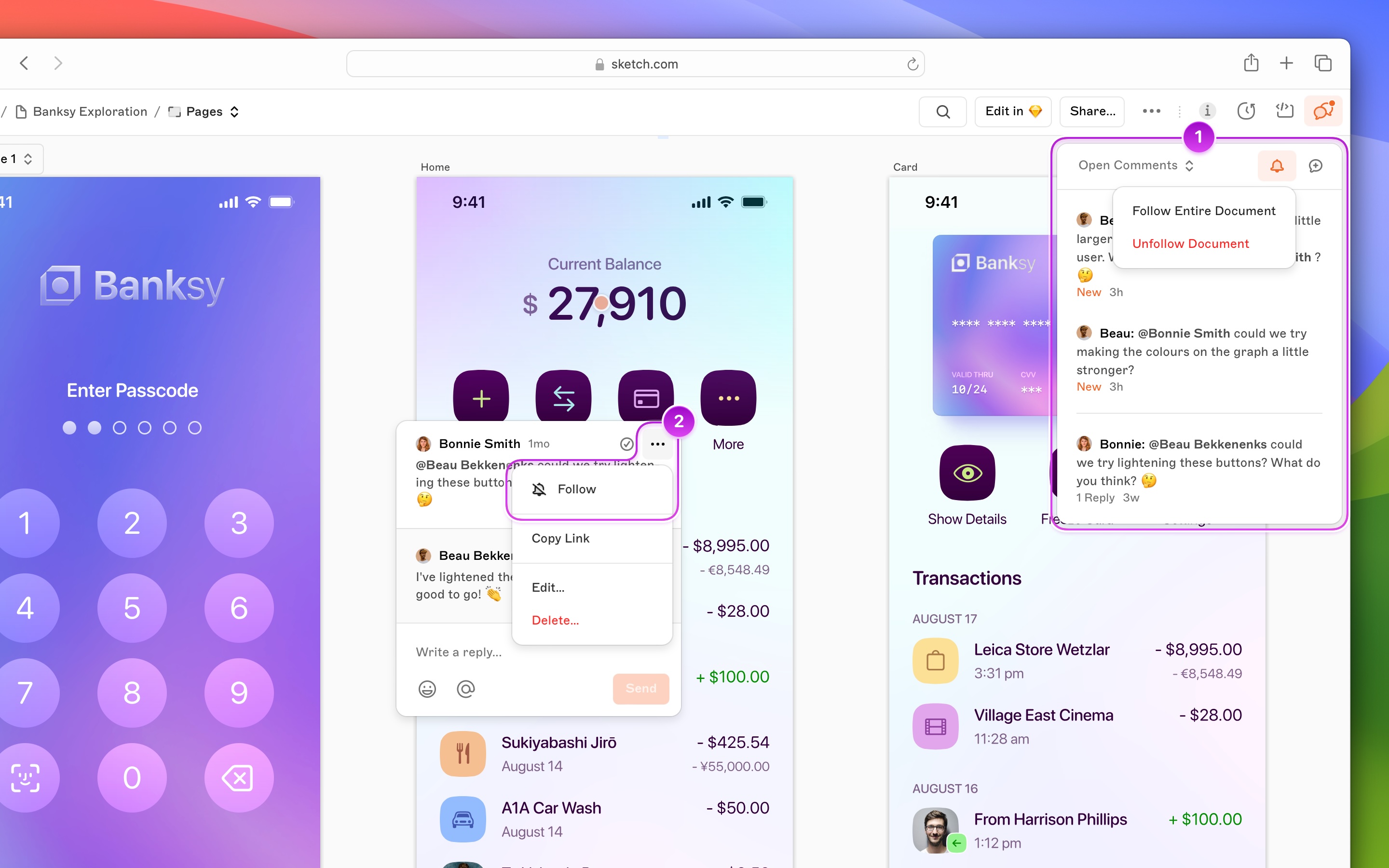
*How to follow a document or a comment thread in the web app*
1. To receive notifications for a whole document, go to the Document Details panel and click the **Following** button. Select the **Follow Entire Document** option. To stop receiving notifications, choose **Unfollow Document**
1. To receive notifications on a single comment thread, open the comment popover. Click and select **Follow** in the contextual menu. To stop receiving notifications, click on it again
If you want to receive notifications for a specific frame, open that frame and click on the icon under the **Comments** panel. You can choose to follow all the frames in a document or just the current one using the menu.

*How to follow comments for a single frame in the web app*
### Viewing notifications
You can access all your notifications via the [Updates](/docs/sharing-and-collaborating/using-your-workspace/managing-updates-and-notifications/) page. The Updates page shows all the replies and mentions for the documents you follow. To read a document in context or reply, click on any comment or mention — we’ll take you right to the related frame or document.
To mark a comment as read, click on the tick that appears to the right of the notification when you hover over it — or click **Mark All as Read** from the top of the page.
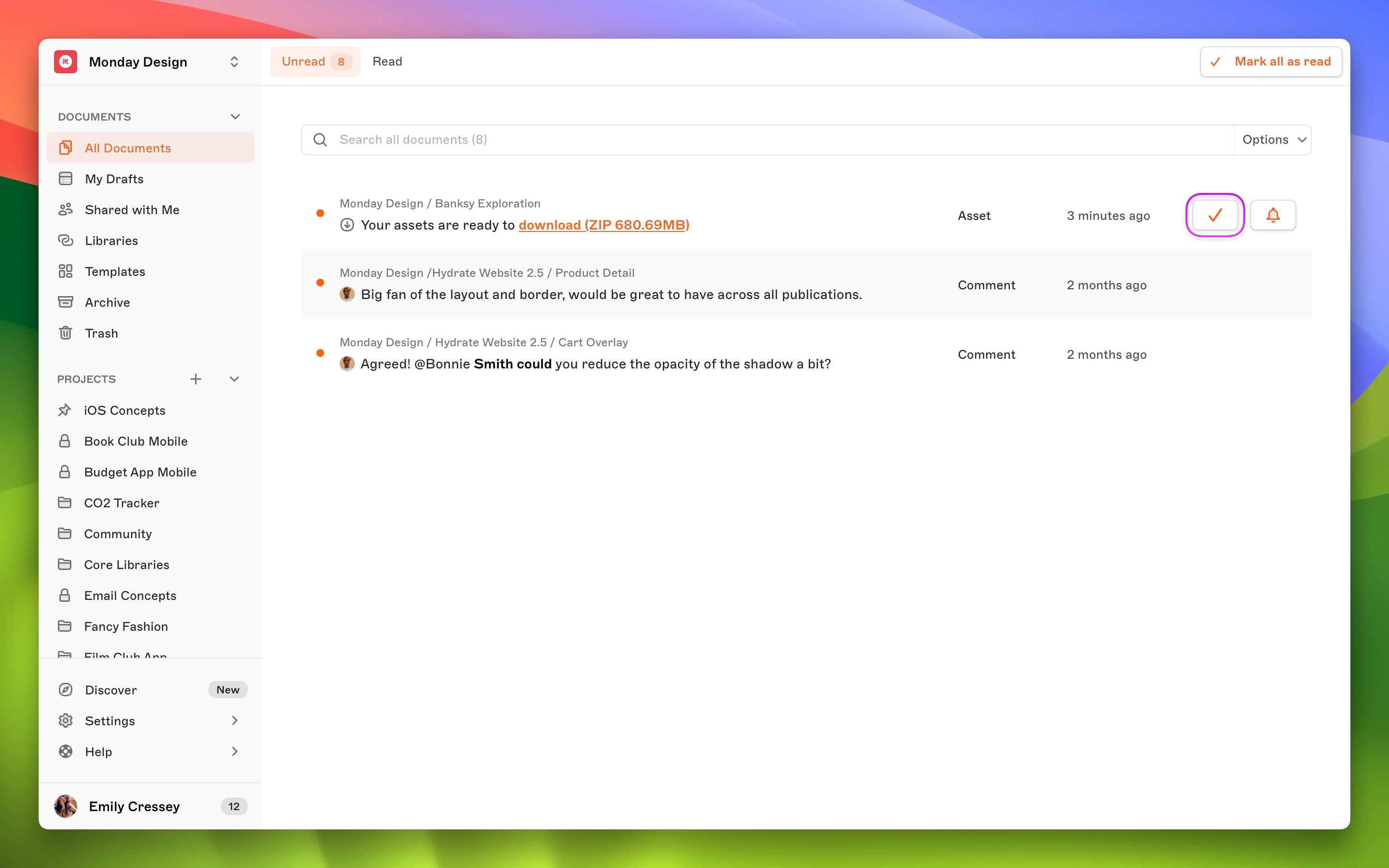
*How to mark a notification as read*
## Who can comment?
When you share a document, we’ll enable commenting by default. If you want to disable commenting for Viewers or Guests on your document, uncheck the **Can comment** option via **Share** > **View**.
Anyone who can access a document using a public link can view the document but will need to sign in to their Sketch account to comment. You can’t remove the ability to comment for Editors.